Create 1Click Relationship Offers (Terms and Conditions and URL)
| Screen ID: | UCLR1CLK-04 | 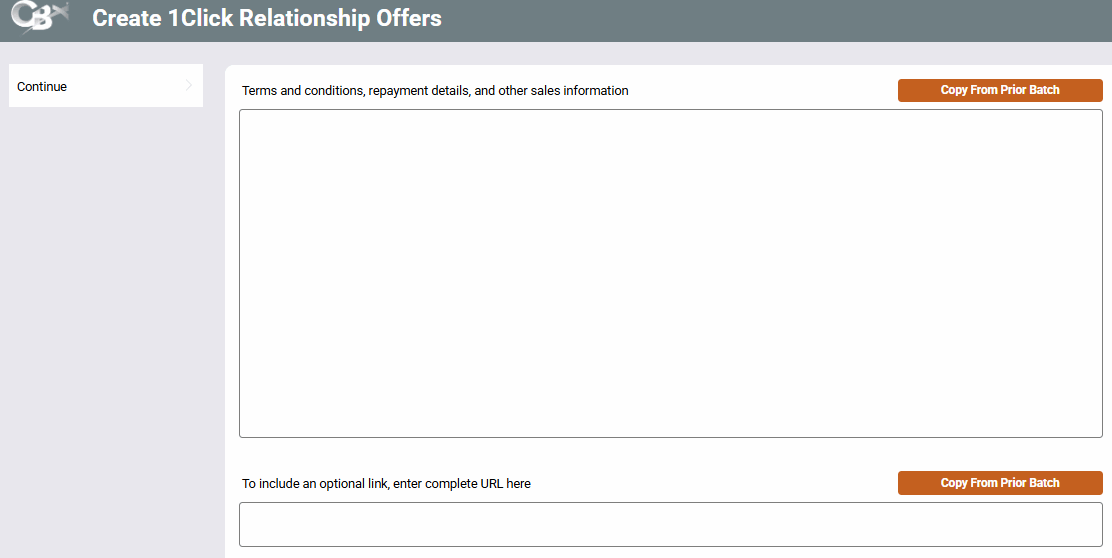
|
| Screen Title: | Configure 1Click Relationship Offers | |
| Tool Number: | 1061 | |
| Click here to magnify |
Access this screen by using Continue on the third screen to create 1Click Relationship Offers.
Helpful Resources
Overview: 1Click Offers, 1Click Offers reference guide
Overview: CLR Path Decision Advisor, CLR Path reference guide
Screen Overview
This screen allows you to add the instructions the member will see for your 1Click offer and the Terms and Conditions the member will agree to before accepting the offer and opening the loan.
-
The first box explains and markets the offer and explains the terms and conditions associate with the offer. The maximum character limit for this field is 2,100 characters (including spaces).
-
(Optional) The second box allows you to enter a URL to link to a website for additional instructions. The member will access this URL when viewing the Terms and Conditions via a conditional “More Info” button. If the member clicks the button, they will be taken to the URL entered in this field. This is an optional feature.
If you have used the 1Click Batch feature before, you can also use Copy from Prior Batch to copy a block of text used for a previous offer into each section, and then adjust the text to meet the requirements of the current offer.
The first box must contain data to continue. The second box may be left blank.
Use Continue to advance to the next screen.