Configure 1Click Relationship Offers (Entry Screen)
| Screen ID: | UCLR1CLK-02 | 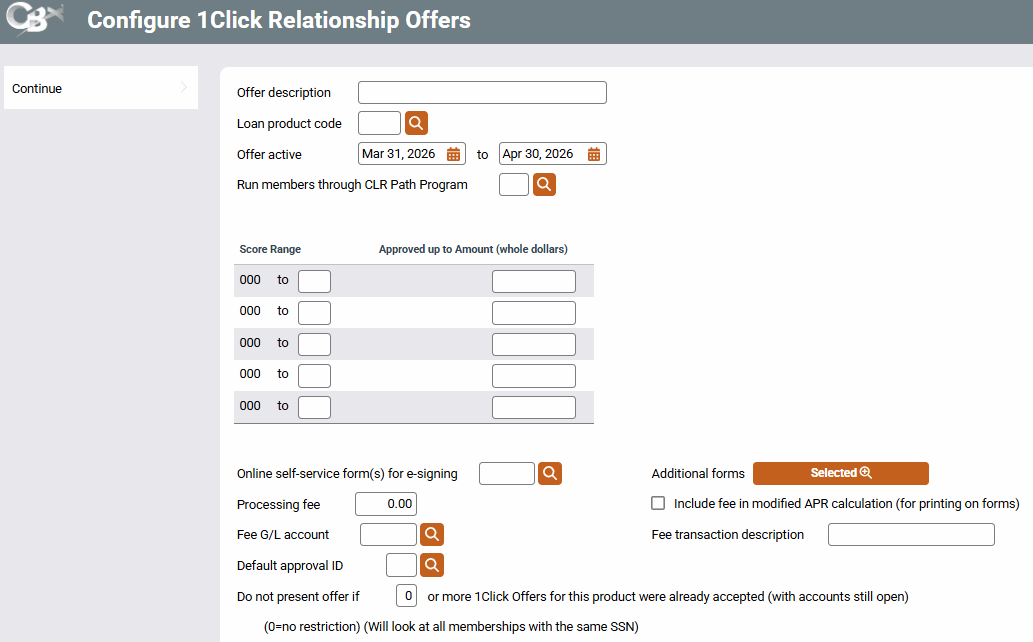
|
| Screen Title: | Configure 1Click Relationship Offers | |
| Tool Number: | 1061 | |
| Click here to magnify |
Access this screen by using Continue on the first screen to create 1Click Relationship Offers.
Helpful Resources
Overview: 1Click Offers, 1Click Offers reference guide
Overview: CLR Path Decision Advisor, CLR Path reference guide
Screen Overview
This screen is where you will enter the parameters for a 1Click Relationship Offer. For details on each field, see below in the Field Descriptions table.
After completing the fields on this screen, use Continue to advance to the next screen, where you will select the number of payments and interest rate.
Field Descriptions
|
Field Name |
Description |
|
Offer Description |
This is where you will enter a name/description for your 1Click Relationship Offer. You may use up to 30 characters. This field is required. |
|
Loan product code |
This is the loan product you are offering. Using the lookup button will bring you to a screen that displays the loan product codes configured via Tool #470 Loan Product Configuration. This field is required. |
|
Offer active |
This is the date range for which your 1Click Relationship Offer will be active. An offer's duration cannot overlap with any other active 1Click Relationship Offer. The system allows only one of these campaigns to be active at a time. These fields are required. |
|
Run members through CLR Path Program |
Select the desired CLR Path program to run with your 1Click Relationship Offer. CLR Path programs are configured via Tool #1110 Configure CLR Path Criteria. NOTE: It is recommended that your credit union configures CLR Path Programs to be used for 1Click Relationship Offers. |
|
Score Range |
This is where you will configure your CLR Path score range and corresponding amount to be approved. The first “from” range will default to the minimum score to pass per the CLR Path Program configuration. You may configure up to five ranges. At least one range is required.
|
|
Approved up to Amount (whole dollars) |
This is the maximum loan amount that can be offered for that score range. The amount must be in whole dollars. This field is required. NOTE: The member will have the option to take less than the amount offered but not more. If the member chooses to take less than they are offered, all records will be updated to reflect the final amount. |
|
Online self-service form(s) for e-signing |
(Optional field) This allows you to add a form to the 1Click Offer acceptance process. Only loans configured for online banking (OL) are allowed. |
|
Additional forms |
Use this to include up to five additional forms. The form you selected in “Online self-service form for e-signing” will already be highlighted, indicating that you should not select it again. Only loans configured for online banking (OL) are allowed. |
|
Include fee in modified APR calculation (for printing on forms) |
(Optional field) Check this box the incorporate the fee (if applicable) in the Modified APR for appropriate printing on disclosure forms. |
|
Processing fee |
(Optional field) Enter a fee the member will be charged at the time they accept the offer. |
|
Fee G/L account |
Enter the G/L for the fee, if applicable. |
|
Default approval ID |
Select an employee ID to be the default approver ID. When the offer is accepted, this ID will be used in the offer details file (ONECLKOFRS) and in the MEMBER5 or MEMBER6 file. |
|
Do not present offer if |
This field defaults to zero and will not allow a number higher than 9. Use this field to control how many 1Click Offers (with the same product code) a member can hold simultaneously. Before an offer is presented, the system automatically checks all memberships associated with the member's primary SSN for other accounts under the same product code.
|