Configuring a Custom Check Order Interface - CheckPrintingSolutions (CPS)
|
Screen ID: Screen Title: Panel Number: |
UCHKORD-06 Update Check Order Information for CheckPrintSolutions 6848 |
|
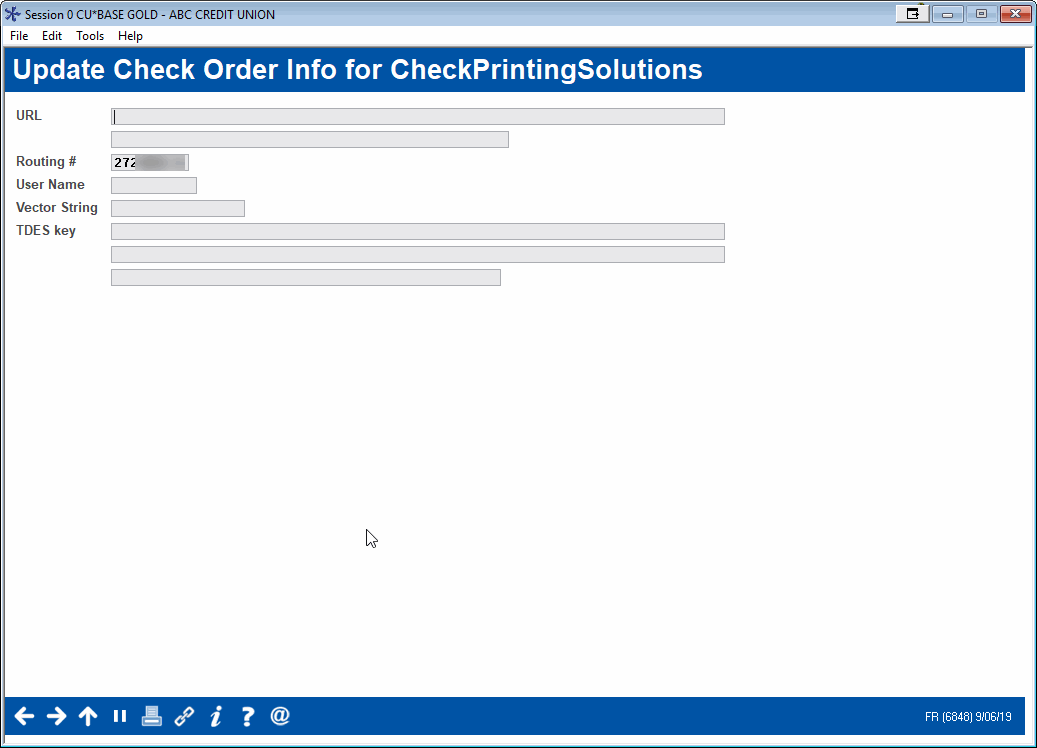
Access this screen by selecting Tool #204 Check Order Interface Configuration. This screen is used if CheckPrintingSolutions is selected for check ordering.
SEE ALSO: Check Ordering (booklet will open)
This screen is used to configure the contact information needed in order for your staff to use the automated link between CBX and CheckPrintingSolutions (CPS) for member check orders and other services.
-
Contact Earnings Edge for assistance if you are interested in learning more about using web-based interfaces for your member check orders and other services. Configuration to select a check vendor is selected in OPER in the Credit Union Master Definition.
-
Then use this screen to configure for CheckPrintingSolutions.
Ordering Checks in CBX
If Harland Clarke is your vendor, you can order checks in the following areas in CBX
-
When updating membership information (use “Update Membership/Account Info”)
-
By using Tool #566: Online Check Ordering (Shortcut: ODRCHK)
Field Descriptions
All of the following parameters should be provided to you by a representative from your vendor. Information must be entered accurately in order for the links to work properly.
|
Field Name |
Description |
|
URL |
Enter the website address of the vendor's online ordering application. Be sure to enter the complete URL, such as https://www.addressname.com.
|
|
Routing # |
Enter your credit union's R&T # as designated by your vendor. |
|
User Name |
Enter your credit union's User Name as designated by your vendor. |
|
Vector String |
Enter your vector string as designated by your vendor. |
|
TDES key |
Enter a key as designated by your vendor. |